
Getting started for players
Players’ guide (PDF)Set up your account, connect your rounds and see what to work on first.
Welcome to AVA Golf
Section titled “Welcome to AVA Golf”AVA Golf pulls your whole game into one app. It shows you where you’re losing strokes and points you to the fix, with videos from Top 100 instructors matched to your game. If your coach invited you, they see the same data and can leave you notes, so your next lesson starts where you left off.
This guide takes about 10 minutes:
- 01Create your account and start your 14-day free trial.
- 02Connect what you use: Garmin, Arccos, Golf Pad or a launch monitor file.
- 03Find your way around the app.
- 04Read your numbers and see what to work on first.
- 05Connect with your coach.
After that, play and practice as normal. New rounds and sessions come in on their own, and your issues and lessons update as they do.
01 Create your account
Section titled “01 Create your account”Signup takes three short steps: Start, Trial and Connect. Your first 14 days are free.
- Go to app.avagolf.com/onboarding/start.
- Start: pick Continue with Google, Continue with Apple, or enter your email and a password of at least 8 characters. Got an invite code? Click Have an invite code? Enter it. Then click Start 14 days free.
- Trial: choose Annual ($150 a year, works out to $12.50 a month) or Monthly ($25 a month). On the web, Stripe holds a card, but nothing is charged today. Cancel before day 14 and you pay $0.
- Connect: link your first data source (see Step 2), or click Skip for now.
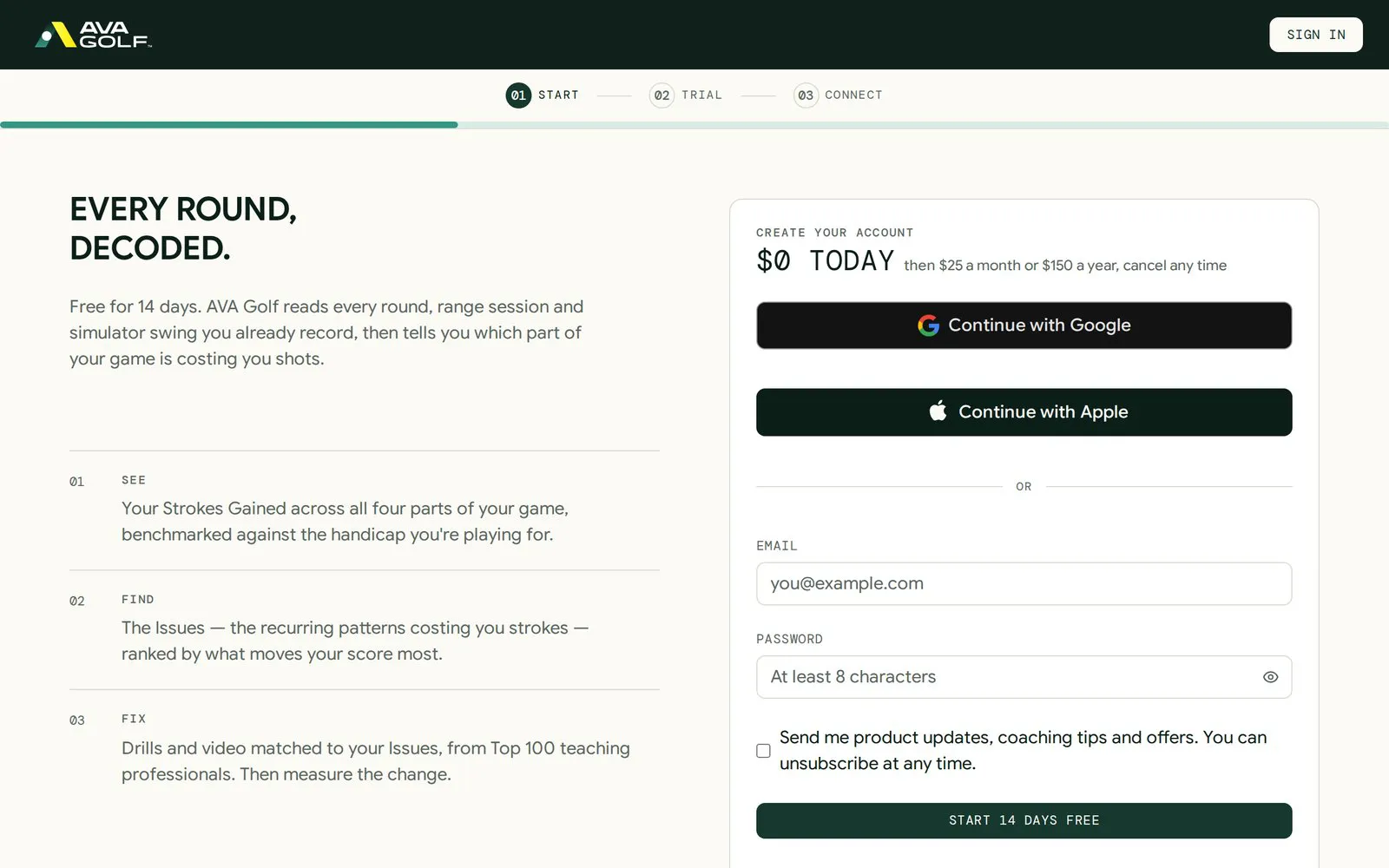
In the iPhone app, you pay through the App Store instead of Stripe.
Want to look around first? Open the demo. It shows the full app with a sample golfer’s data and a short guided tour. You don’t need an account.
On iPhone? Download AVA Golf from the App Store and sign in with the same account.
02 Connect your data
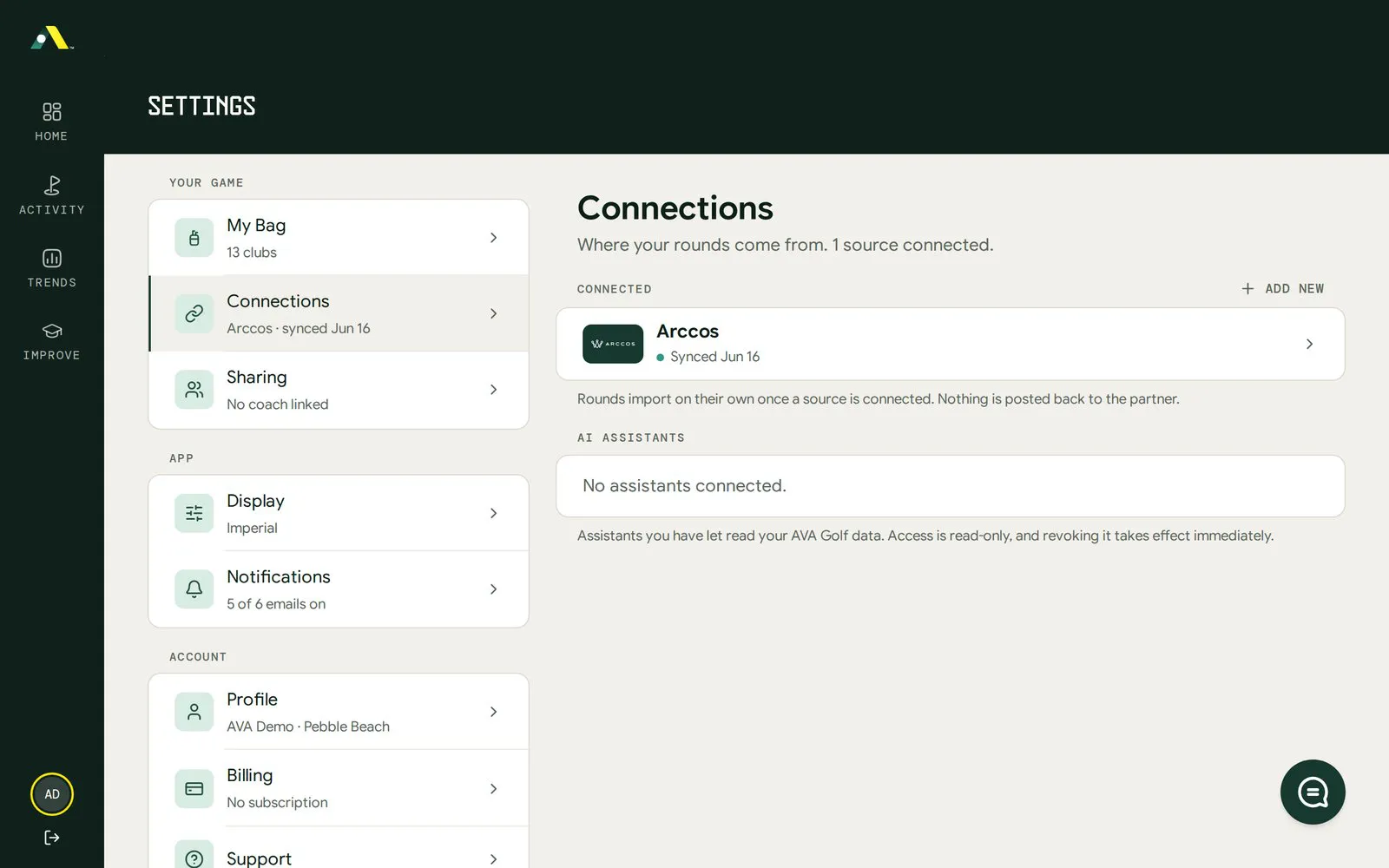
Section titled “02 Connect your data”Connect a source once, and new rounds and sessions come in automatically after that. You can connect during signup or later in Settings › Connections.
| Source | What it brings | How it connects |
|---|---|---|
| Garmin Connect | Rounds from your Garmin watch | Direct sync, sign in once |
| Arccos | Rounds with every shot tracked | Direct sync, sign in once |
| Golf Pad | Rounds from the Golf Pad app | Paste a share link, then it syncs every hour. You can also forward Golf Pad export emails to your personal import address. |
| USGA (GHIN) | Your Handicap Index® | Direct sync |
| TrackMan | Range and simulator sessions | Paste a TrackMan link with Import from URL |
| Launch monitor file | Range and simulator sessions | Upload CSV from GSPro, Full Swing, FlightScope Mevo+, Garmin Approach R10, Rapsodo MLM2PRO, SkyTrak, Foresight GCQuad/GC3 or TrackMan |
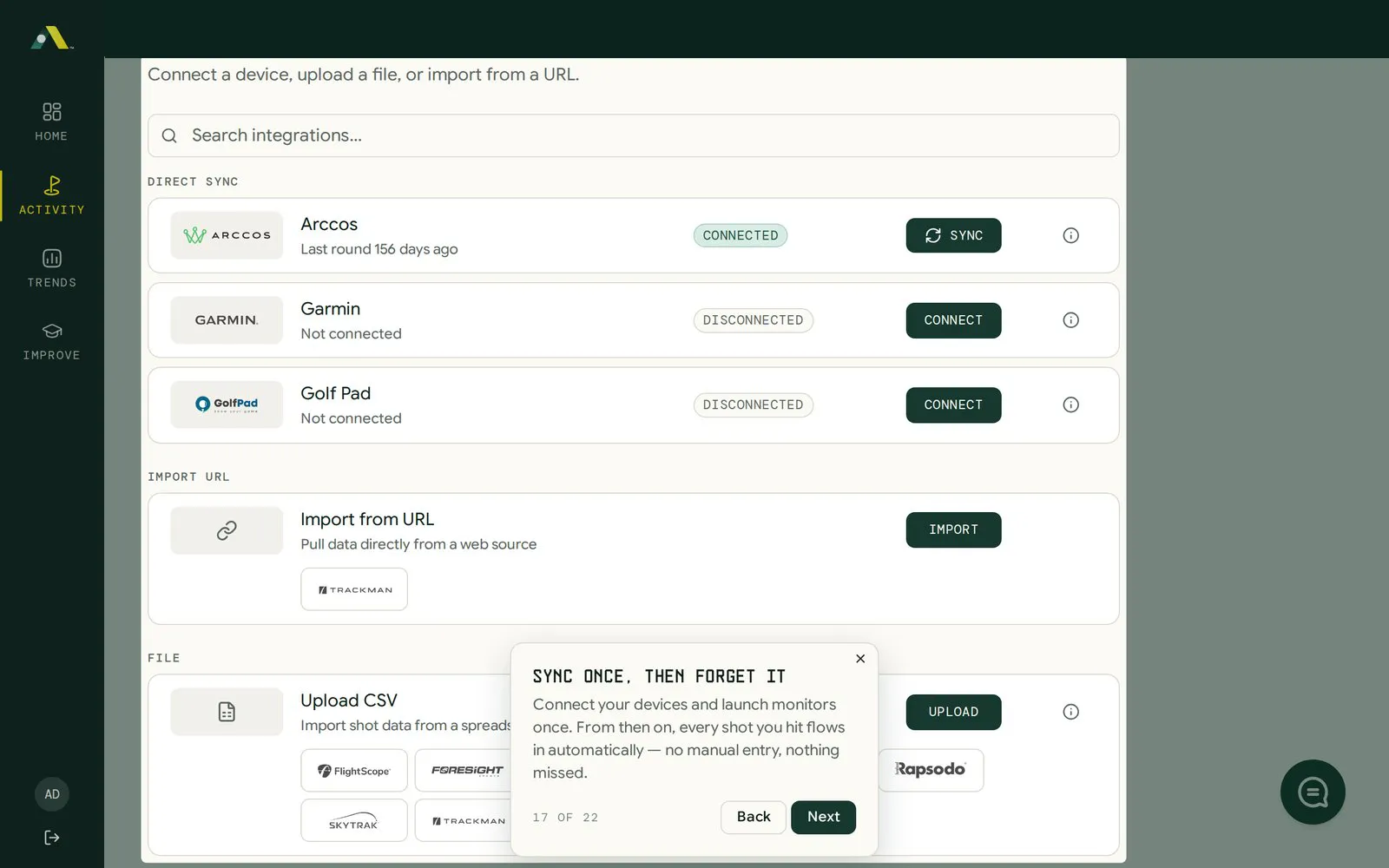
No match for your setup? On the Connect step, click Nothing here fits my setup and we’ll let you know when your device is supported.
To add a source later:
- Click your user icon at the bottom left, then Settings.
- Open Connections.
- Click Add new (or Add a source if nothing is connected yet).
- Pick your source and follow the steps on screen.
03 Find your way around
Section titled “03 Find your way around”The menu on the left (at the bottom on your phone) has four main areas.
| Menu item | What you find there |
|---|---|
| Home | Your Handicap Index® or Round Average, your scoring trend, and Your biggest lever: the one area costing you the most strokes. |
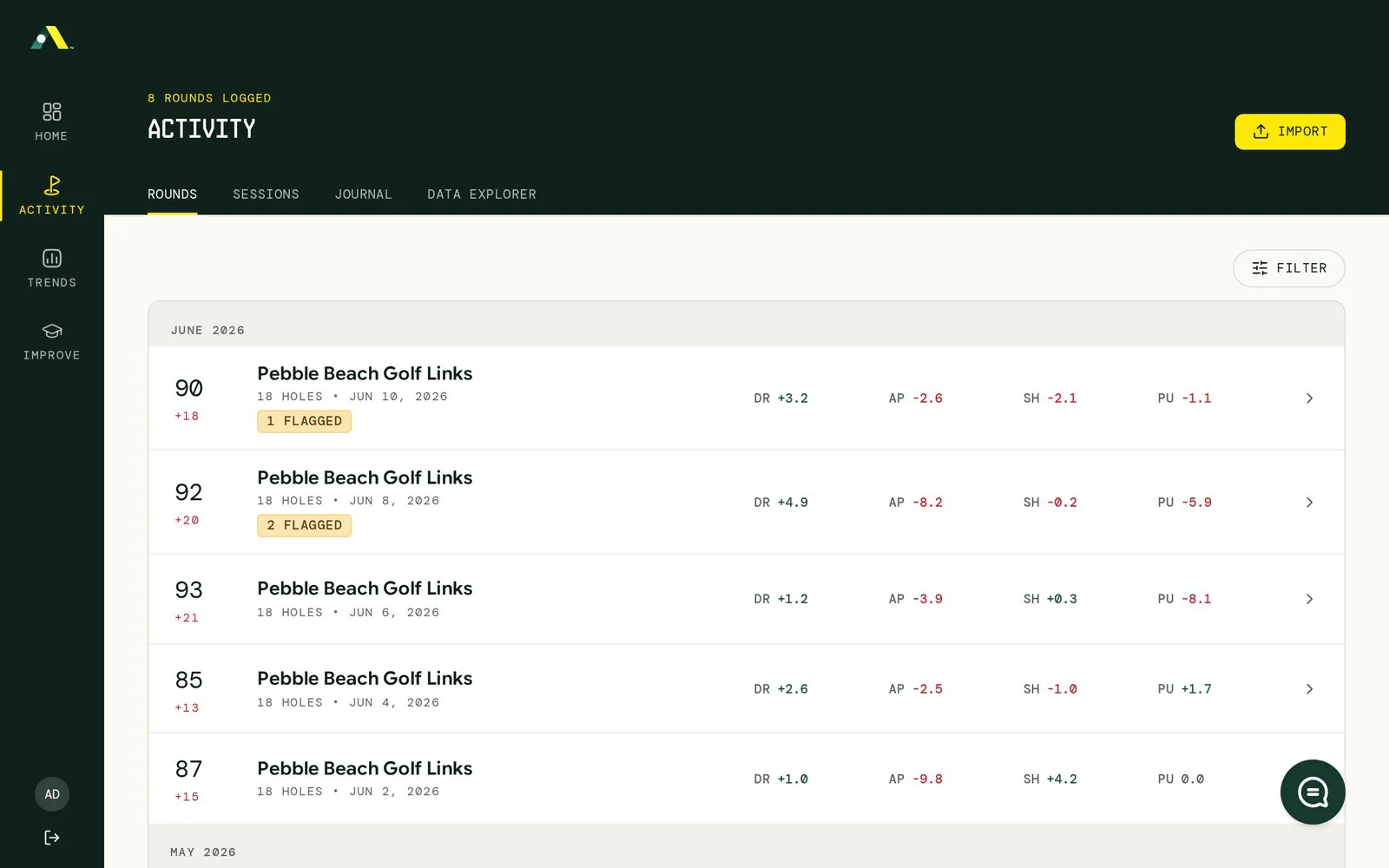
| Activity | Every round and range session, newest first. Tabs: Rounds, Sessions, Journal and Data Explorer. |
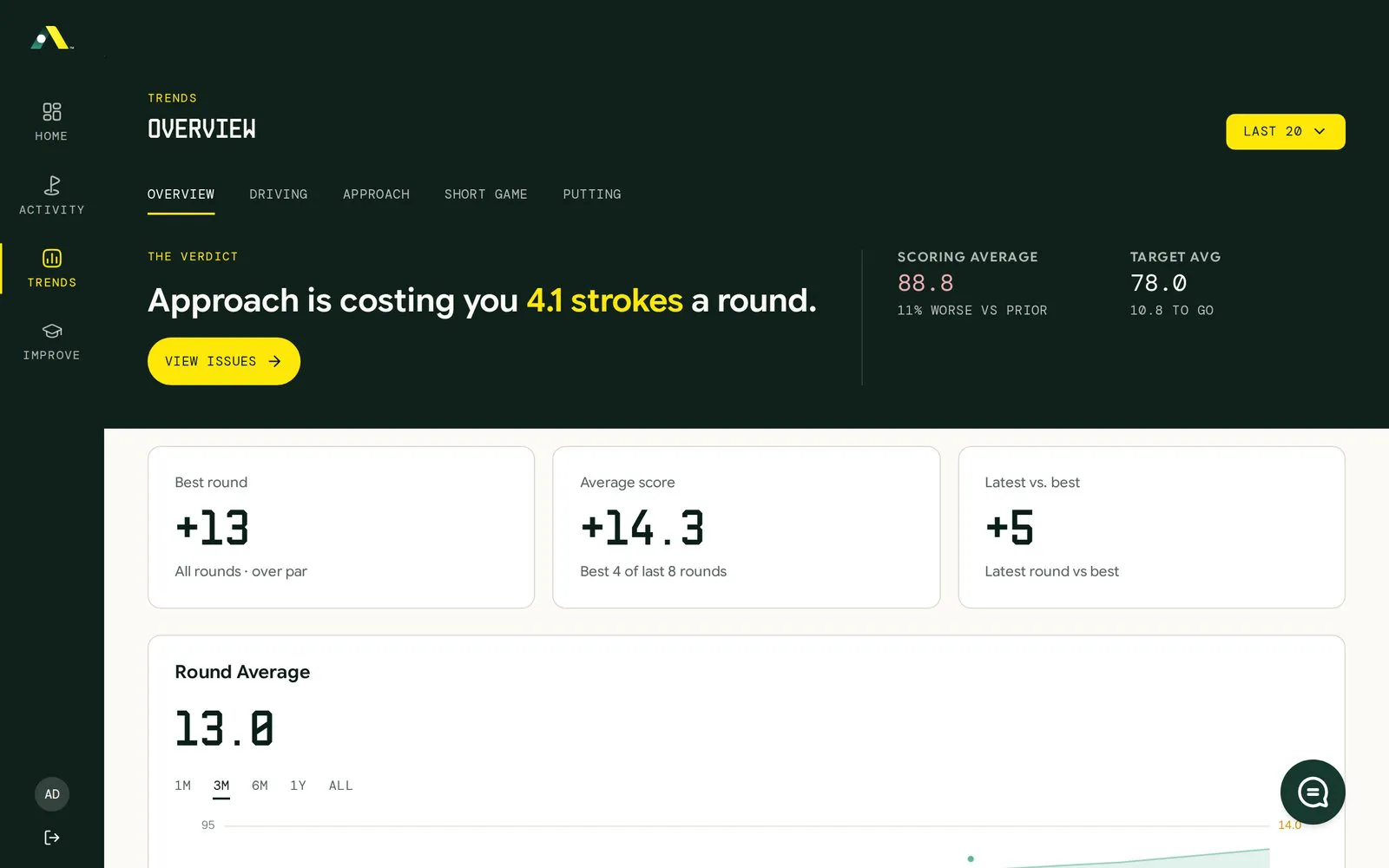
| Trends | Strokes gained over time for Driving, Approach, Short Game and Putting. |
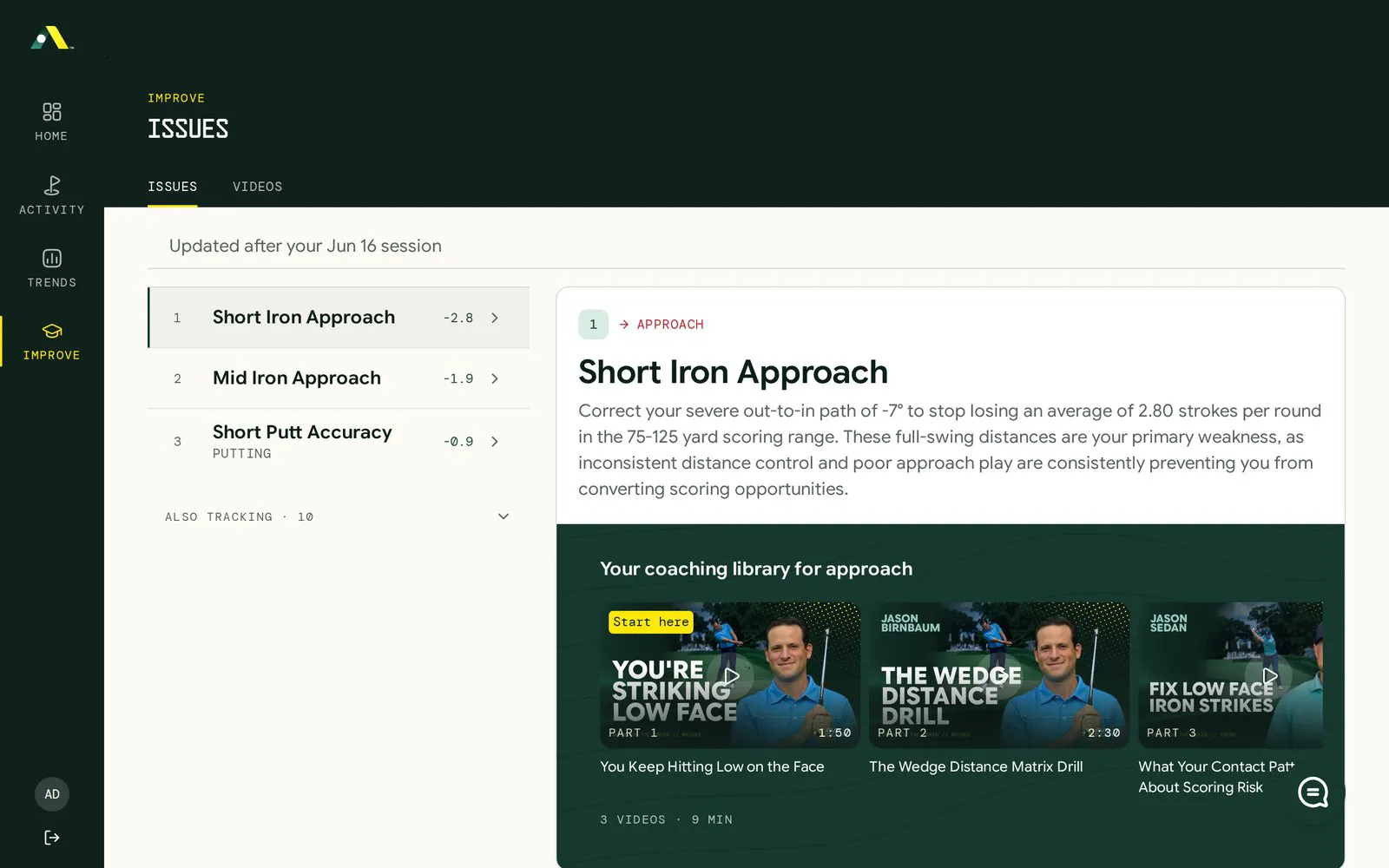
| Improve | Your Issues: the patterns costing you strokes, ranked, each with matched video lessons. Your full library is under Videos. |
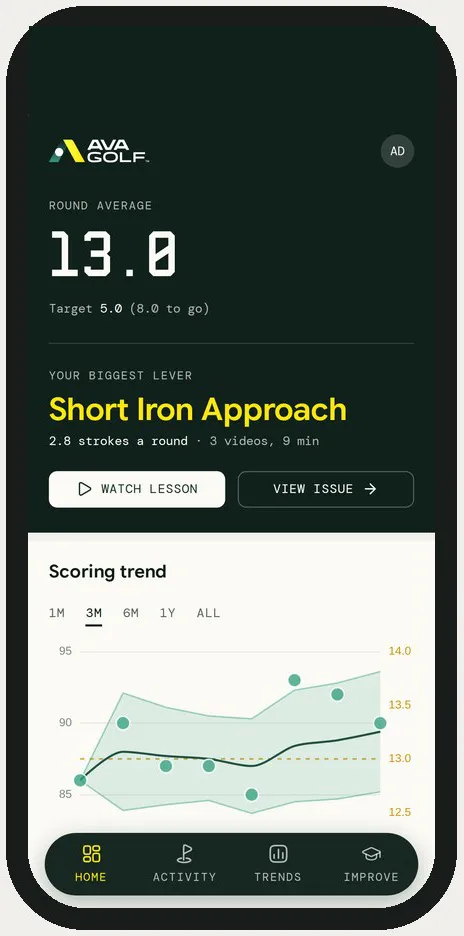
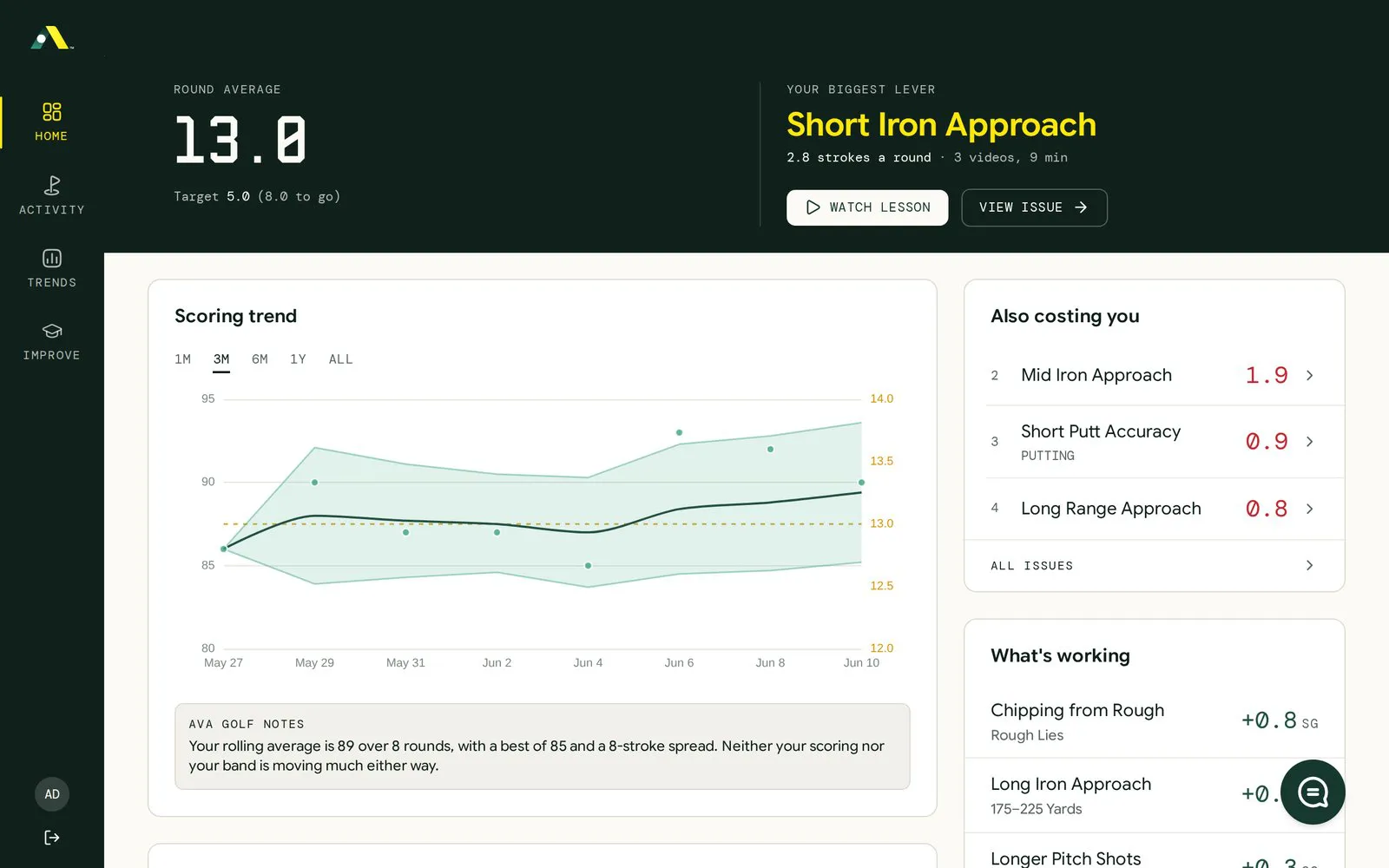
Click your user icon at the bottom left to open Settings and Messages.
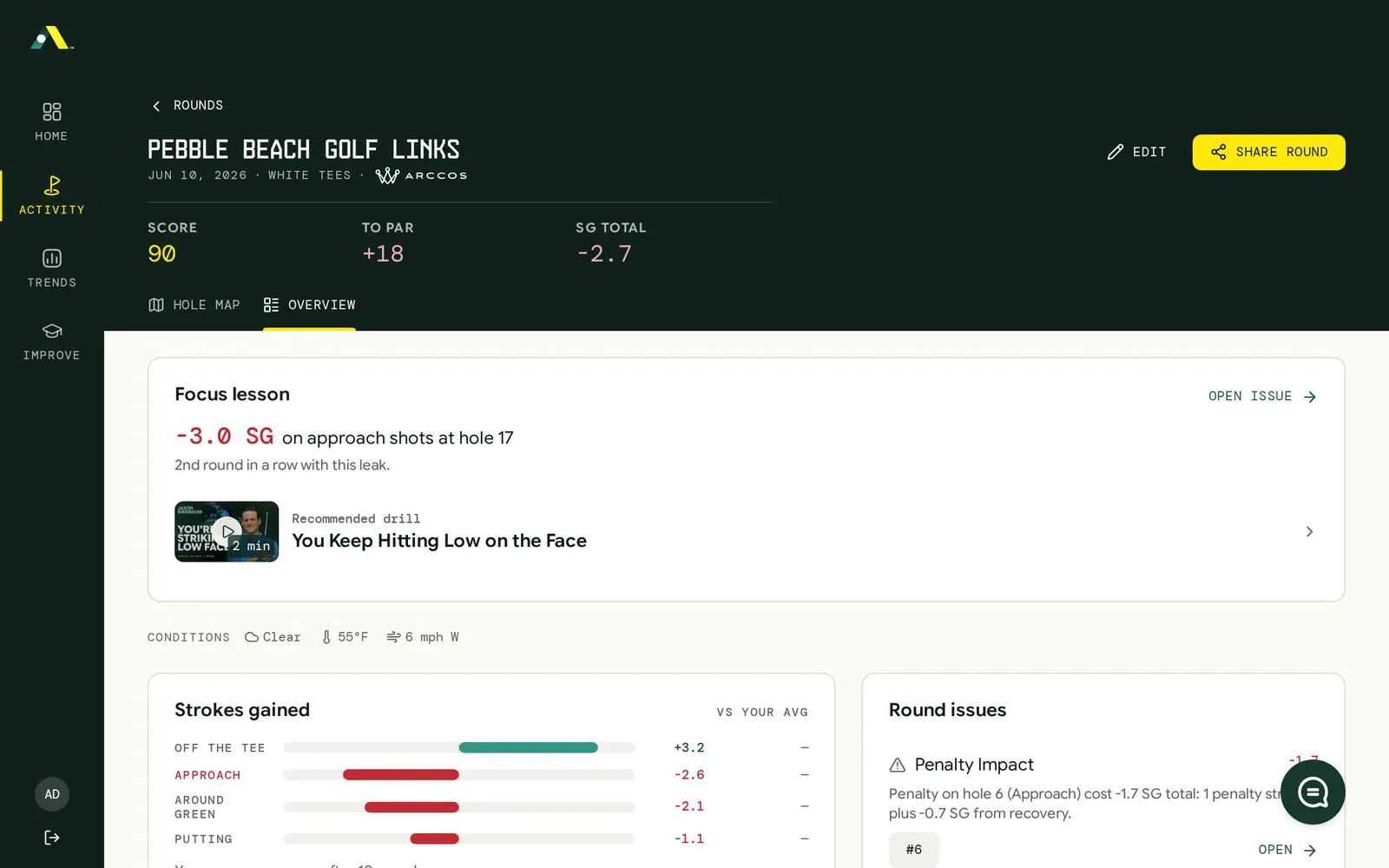
Open a round. In Activity › Rounds, click a round. The Overview tab shows your score, strokes gained by category and round issues. The Hole map tab replays each hole shot by shot.
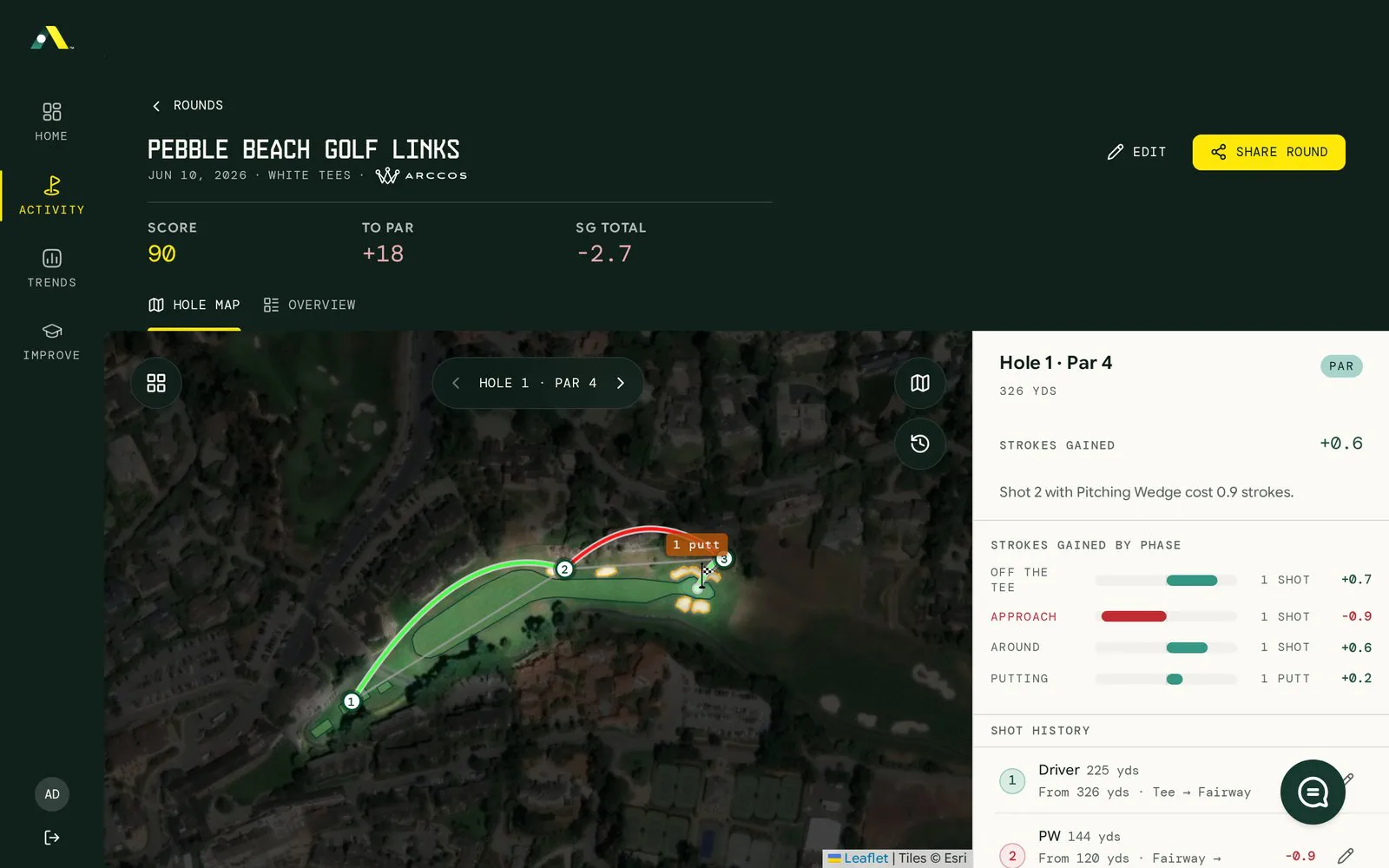
Compare with past rounds. On the Hole map, click the clock icon on the right (Past rounds). It lists every earlier round you’ve played on that hole, with your score and strokes gained. Pick one and its shots are drawn over today’s, so you can see how you played the same hole before. Turn on Show all to overlay every past round at once.
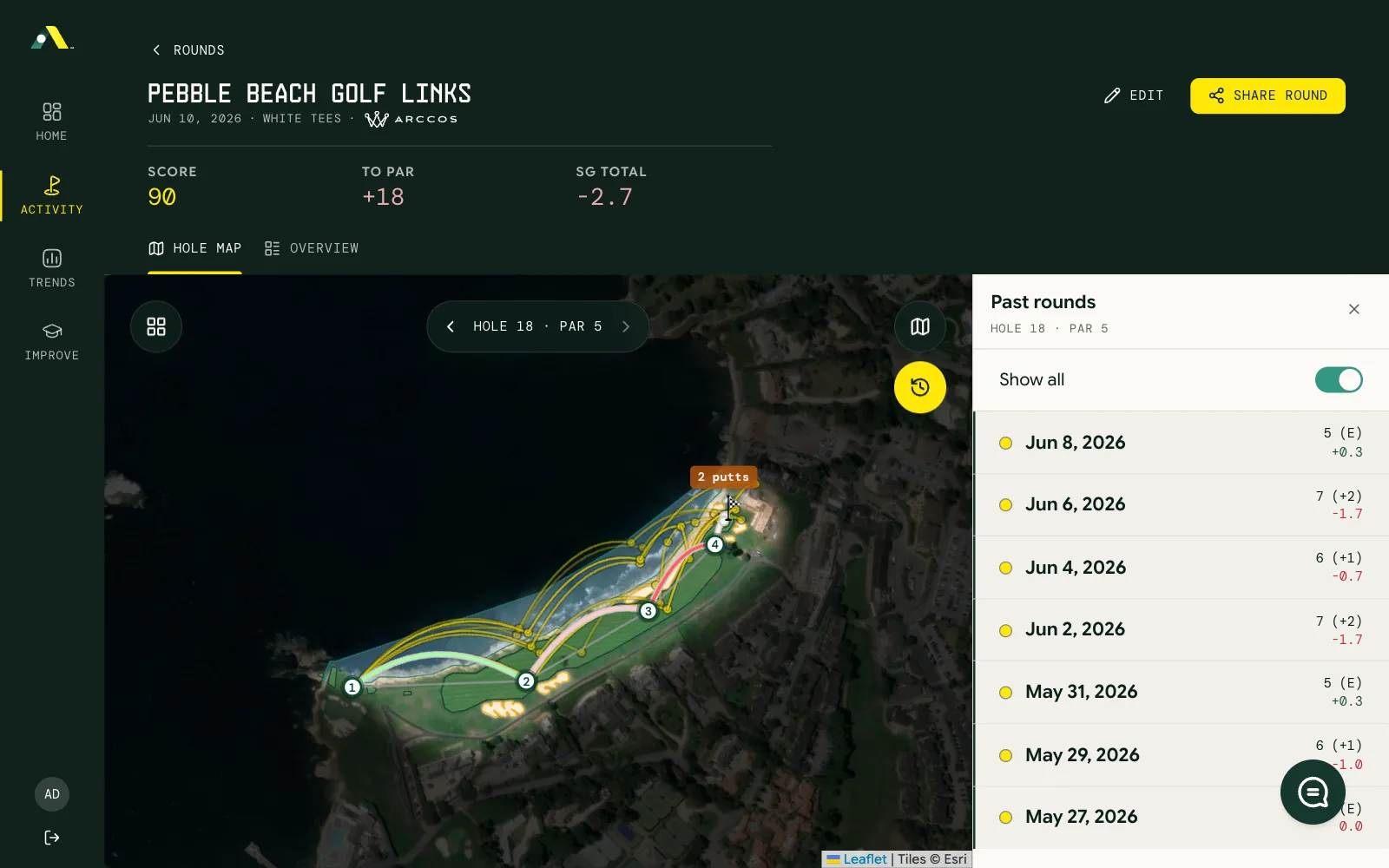
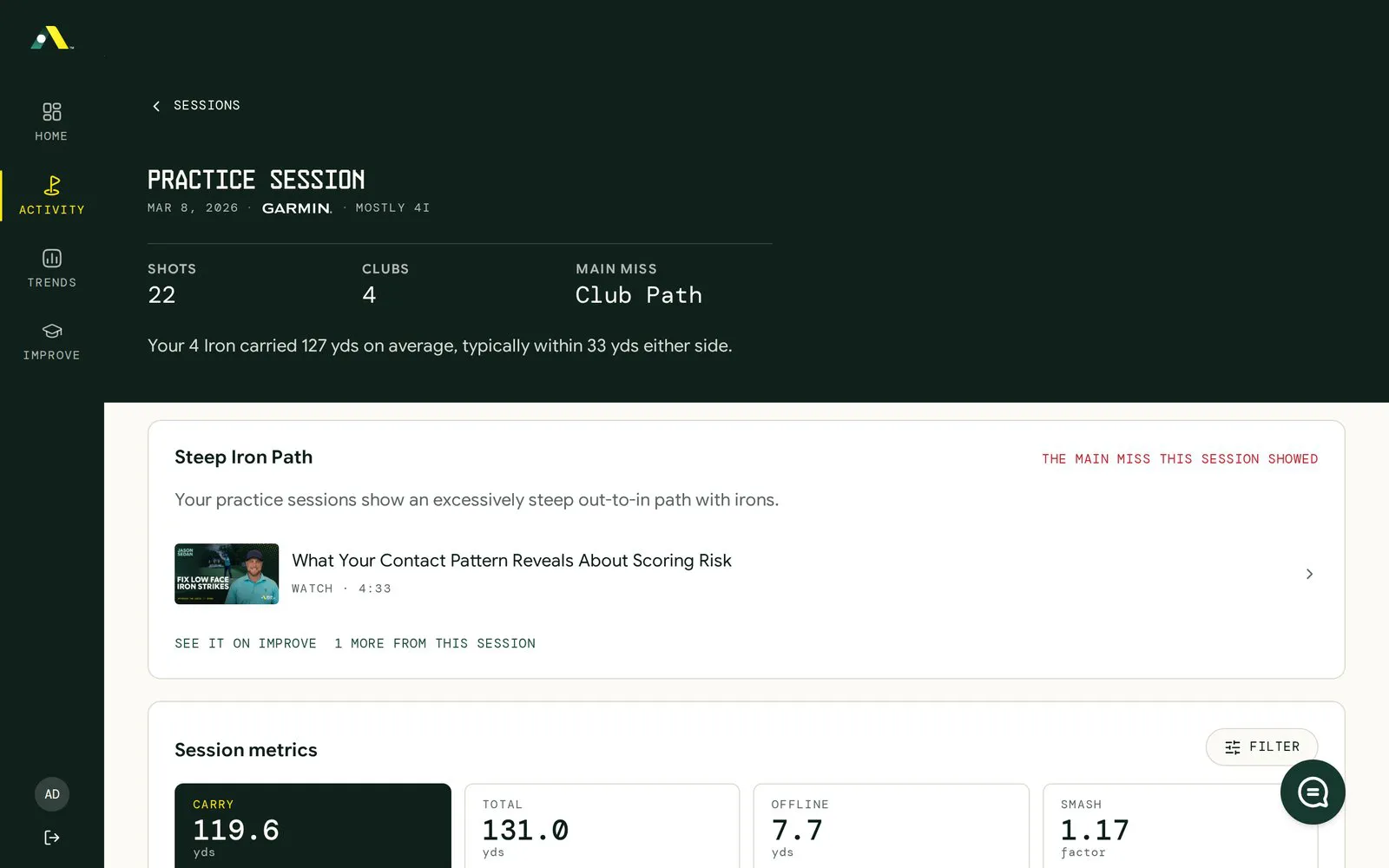
Open a range session. In Activity › Sessions, click a session to see carry distances, dispersion and club-by-club patterns.
Take the tour any time. The demo walks through these screens in 22 short steps.
04 Understand your numbers
Section titled “04 Understand your numbers”Strokes gained tells you how many shots you gained or lost compared with a benchmark. You choose the benchmark in Settings › Display › Baseline comparison:
- Yourself (the default): each shot is measured against your own average, so the numbers show where you played better or worse than you normally do. A round’s Overview labels this vs your avg.
- PGA Tour: each shot is measured against tour players, so you can see how each part of your game compares with the best in the world.
Changing the baseline recalculates all your rounds. Whichever you pick, the numbers read the same way:
- Positive number (green): you did better than the benchmark. +0.8 means you saved almost one shot.
- Negative number (red): you lost shots. −2.6 on Approach means approach shots cost you about 2.6 strokes that round.
- SG Total: all four parts added up.
The four parts of your game:
| Part | Shots it covers |
|---|---|
| Off the tee (Driving) | Tee shots on par 4s and par 5s |
| Approach | Shots into the green from the fairway, rough or tee on par 3s |
| Around the green (Short Game) | Chips, pitches and bunker shots near the green |
| Putting | Every stroke on the green |
05 Work with your coach
Section titled “05 Work with your coach”Your coach sees your rounds, trends and issues with read-only access. They can leave notes on your rounds, shots and video lessons. You can have one coach at a time.
Invite your coach:
- Open Settings › Sharing.
- Under Invite a coach to view your performance data and coach you, type your coach’s email in Coach email.
- Click Invite. If your coach is new to AVA Golf, they get an email to create a free coach account.
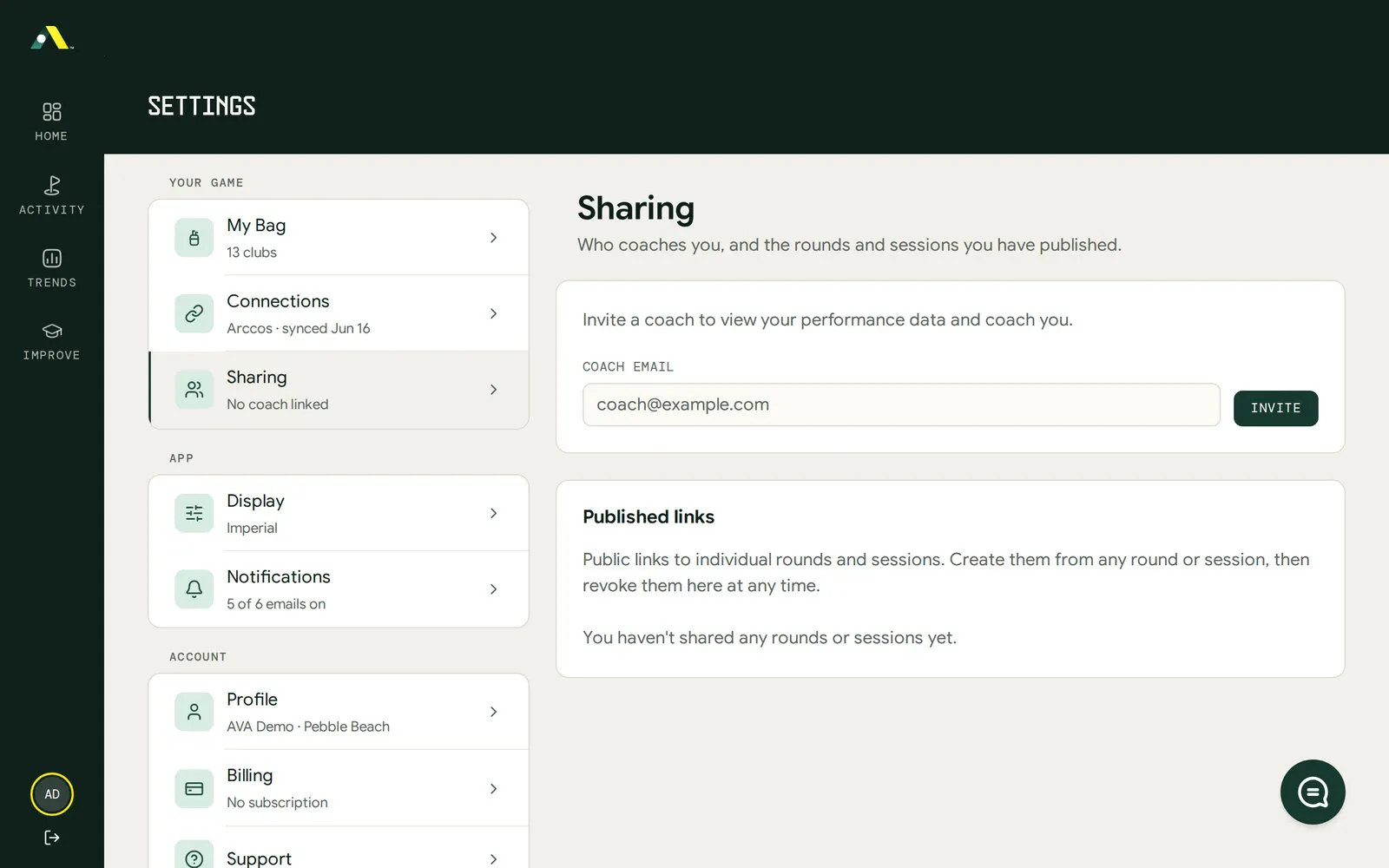
The invite shows under Pending invites until your coach accepts. Click Cancel to withdraw it.
Did your coach invite you? Check your email for the invite and click Confirm. You can also confirm in Settings › Sharing, where a Coach request card shows Confirm and Decline. If you don’t have an account yet, the email’s Accept invitation button takes you to signup.
Stop sharing: open Settings › Sharing and click Remove coach. Your coach loses access right away.
Book lessons: Settings › Lessons is where you book and manage lessons with your coach.
Plans and billing
Section titled “Plans and billing”| Plan | Price | Notes |
|---|---|---|
| Annual | $150 a year ($12.50 a month) | Save 50% |
| Monthly | $25 a month | Cancel any time. |
Every plan starts with 14 days free. Cancel before day 14 and you pay nothing.
Manage your plan: open Settings › Billing to see your status, plan and renewal date. Click Manage subscription in Stripe to change your plan, update your card or cancel. If you subscribed in the iPhone app, the button reads Manage subscription in the App Store.
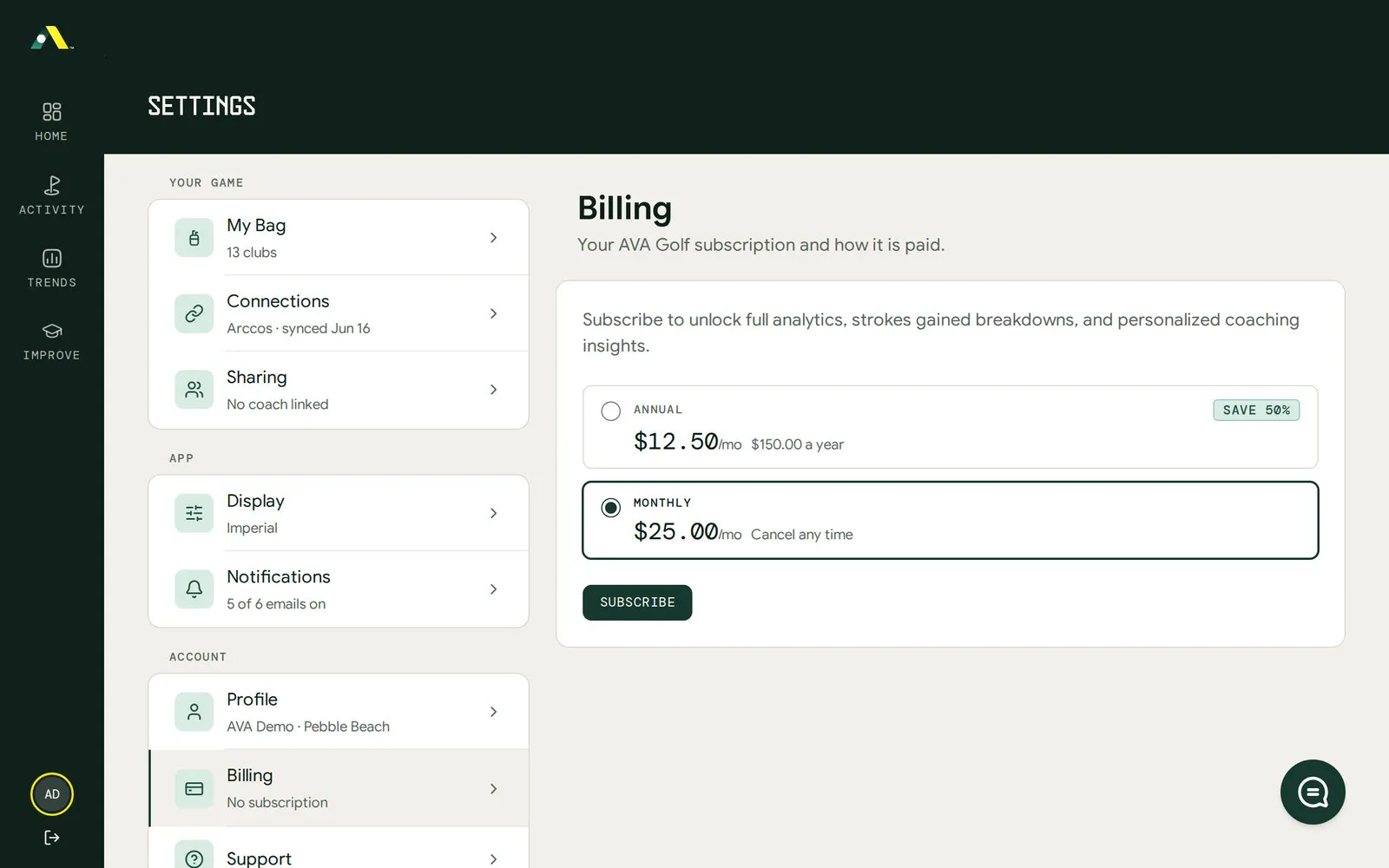
Playing seasonally? In Settings › Billing, choose Pause for the off-season instead of canceling.
FAQ and getting help
Section titled “FAQ and getting help”Do I need a launch monitor? No. Rounds from Garmin, Arccos or Golf Pad are enough to start.
My new round isn’t showing up. Synced sources check in on a schedule. Golf Pad, for example, syncs every hour. Check that the source shows as connected in Settings › Connections.
Can I share one round without a coach? Yes. Open the round and click Share round. You can turn off shared links in Settings › Sharing › Published links.
Is there an app? Yes, on iPhone. Download it from the App Store and sign in with the same account you use on the web.
Need more help? Open Settings › Support, use the chat button at the bottom right of any screen, or visit avagolf.com/support. More answers are in the FAQ.
Download this guide as a PDF
Section titled “Download this guide as a PDF”Prefer to read offline or print it? Open the AVA Golf Getting Started for Players PDF (13 pages).