
Getting started for coaches
Coaches’ guide (PDF)Set up your coach account, connect your students and leave your first notes.
Welcome to AVA Golf
Section titled “Welcome to AVA Golf”AVA Golf lets you follow your students’ games between lessons. Their rounds and practice come in as they play, broken down by strokes gained, so you can see where each student is losing shots, leave them notes and start every lesson already caught up. Coaching on AVA Golf is free, and you only see the students who connect to you.
This guide takes about 15 minutes:
- 01Create your coach account.
- 02Connect your students.
- 03Read your roster.
- 04Review a student’s game.
- 05Leave feedback.
01 Create your coach account
Section titled “01 Create your coach account”Coach signup takes one form, then a short tour of what you’ll see. There is no trial and no card, because coaching on AVA Golf is free.
- Go to app.avagolf.com/onboarding/coach. The page title reads Set up your coaching.
- Pick Continue with Google, Continue with Apple, or enter your email and a password of at least 8 characters.
- Click Create account.
- Read the five short tour screens (Activities, Sessions, Performance, Improve and Notes). They show what you’ll see for each student. They don’t ask for anything.
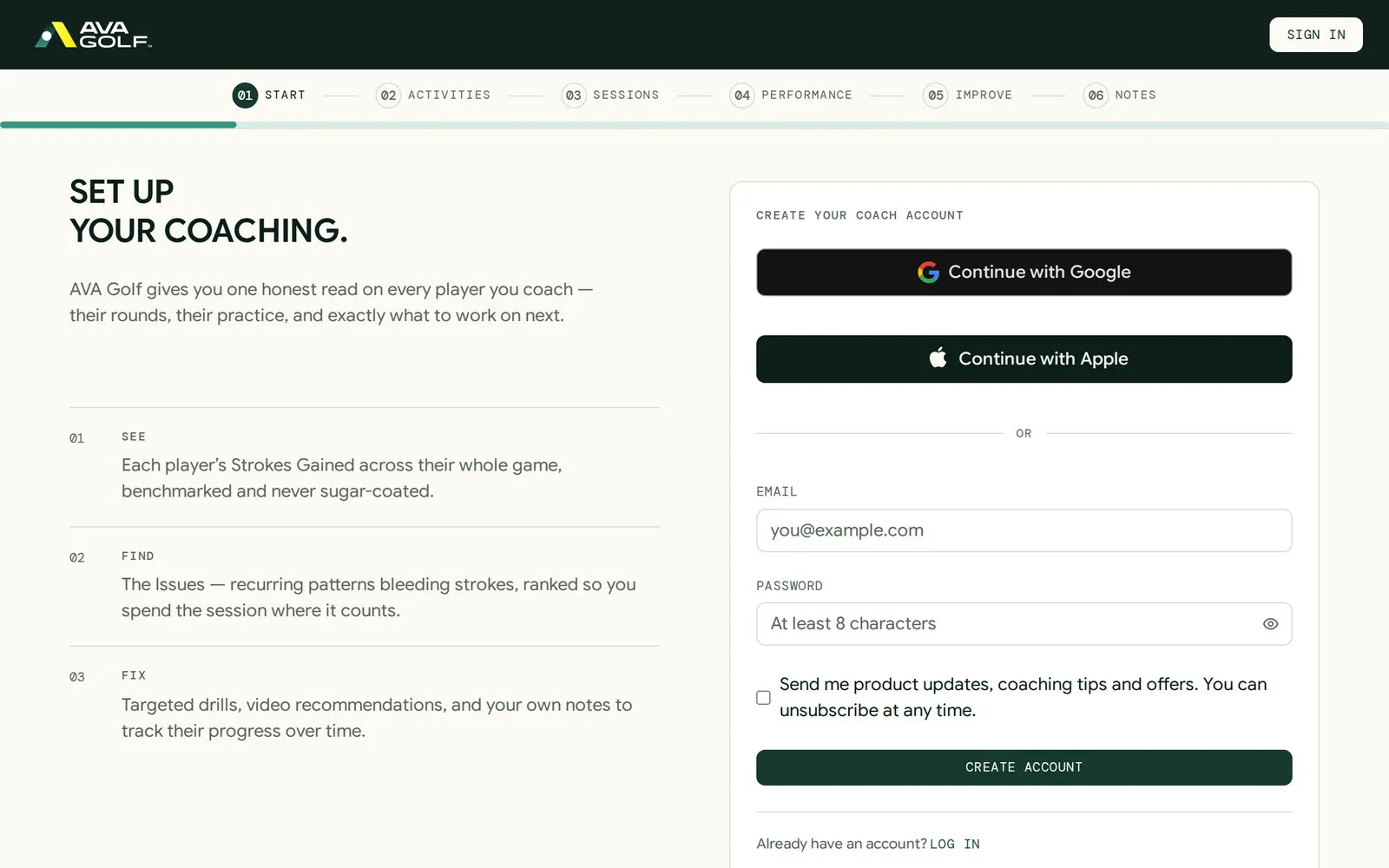
Got an email from AVA Golf saying your coach account is ready? Click Get started in that email. It opens the same page with your email filled in.
Already have an account? Click Log in at the bottom of the form.
02 Connect your students
Section titled “02 Connect your students”Students connect by email, and you can start the link from either side. Each student keeps their own AVA Golf account and data, and gives you read-only access.
You invite your students:
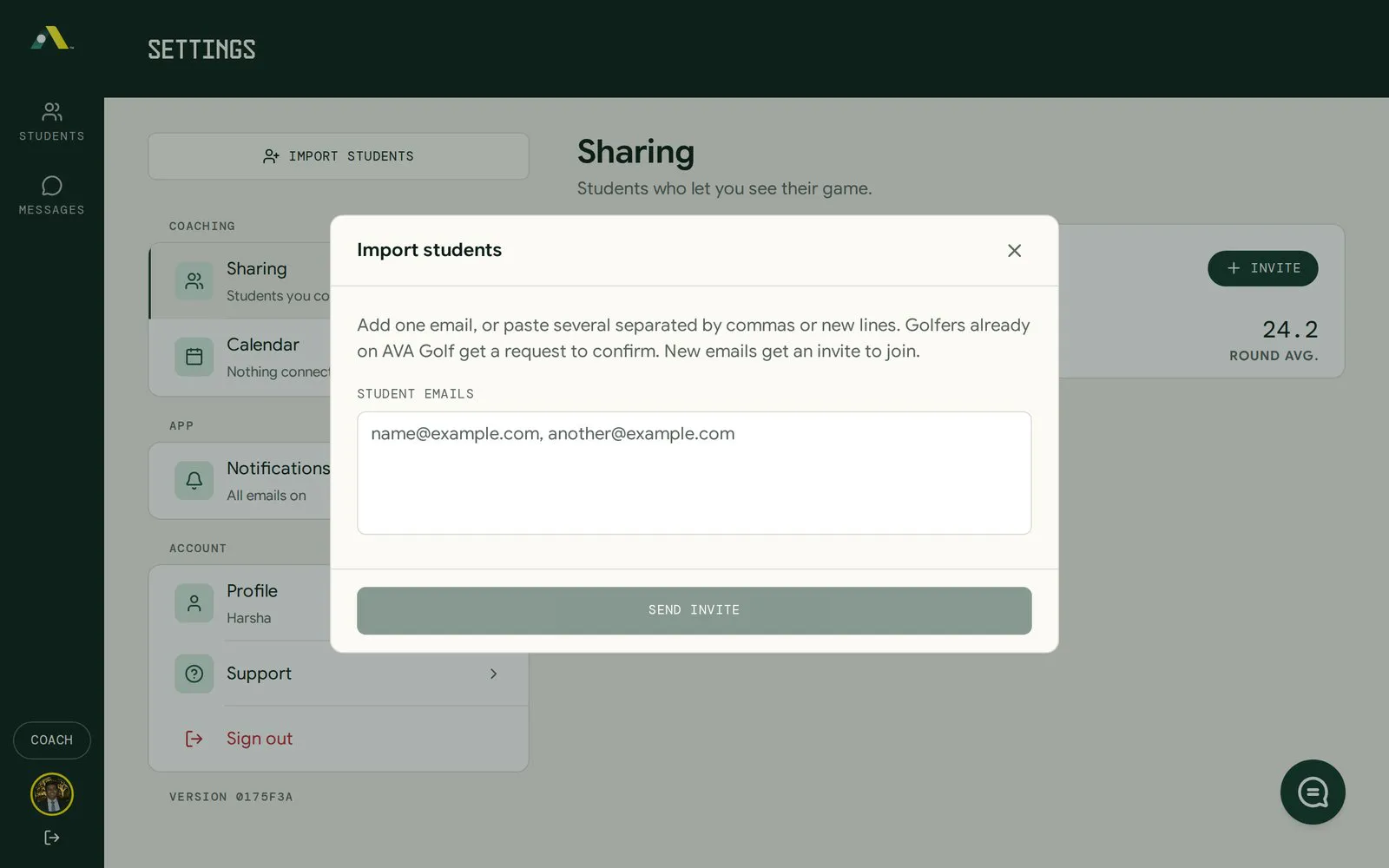
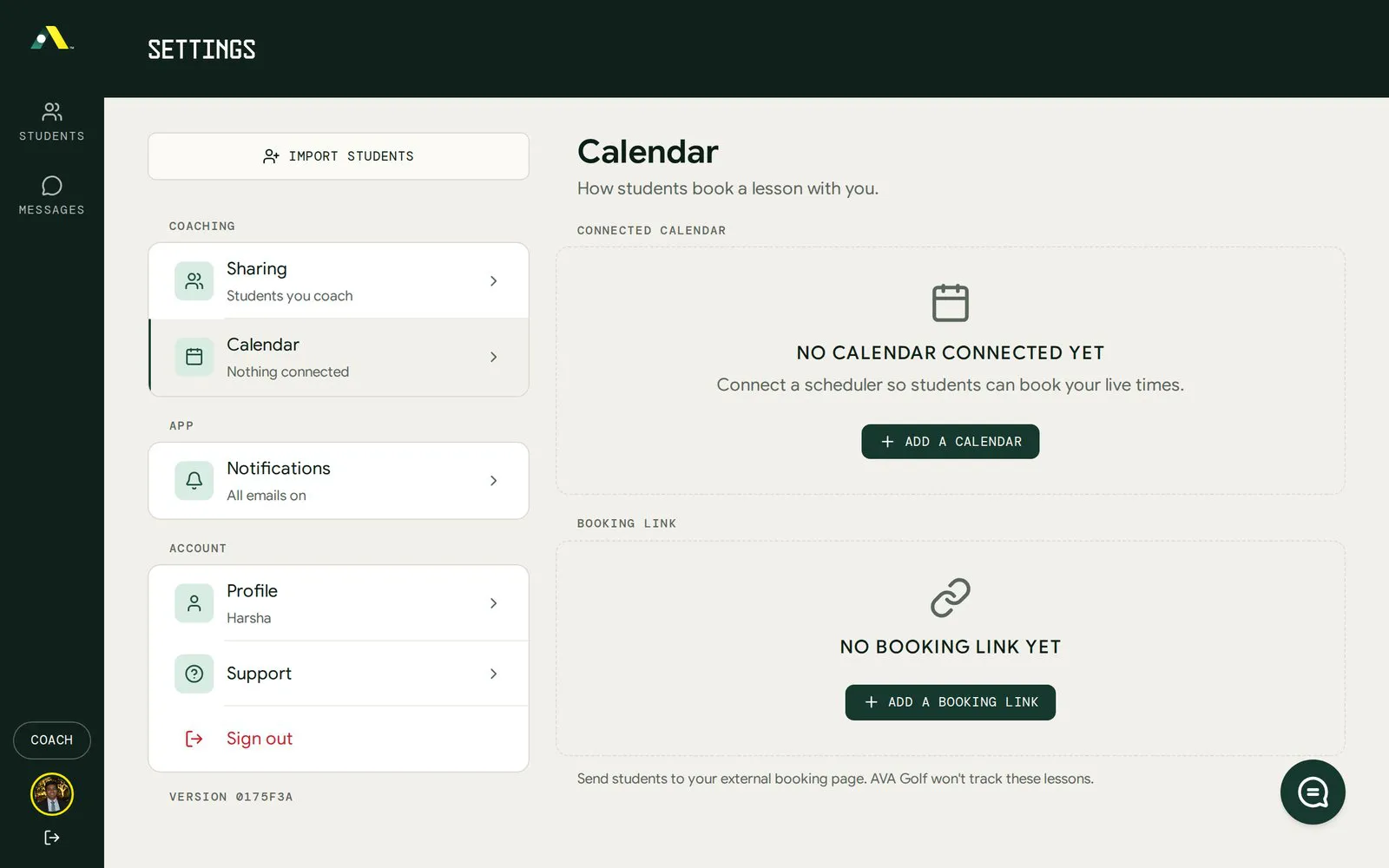
- Open Settings (your user icon at the bottom left), then Sharing.
- Click Import students (top left) or + Invite.
- Under Student emails, type one email, or paste several separated by commas or new lines.
- Click Send invite.
What each student gets:
- Already on AVA Golf: an email and app notification asking them to confirm. They click Confirm, and they show up on your roster.
- New to AVA Golf: an email titled “[your name] invited you to AVA Golf”. Its Accept invitation button takes them to signup. They need a player membership and at least one connected data source before you’ll see any data.
Your student invites you: a student can invite you from their own Settings › Sharing. You get an email to confirm. Requests also appear under Invitations from golfers on your Students page, with Accept and Decline.
03 Read your roster
Section titled “03 Read your roster”Students is your home page. It lists every student who shares with you, with one row each.
| Column | What it shows |
|---|---|
| Student | Name and email |
| Last active | When they last played or practiced, for example “No rounds this week” |
| Level | Their Handicap Index® or Round Average, and the change since your last look |
| DR / AP / SH / PU | Strokes gained for Driving, Approach, Short Game and Putting. Red numbers are strokes lost. |
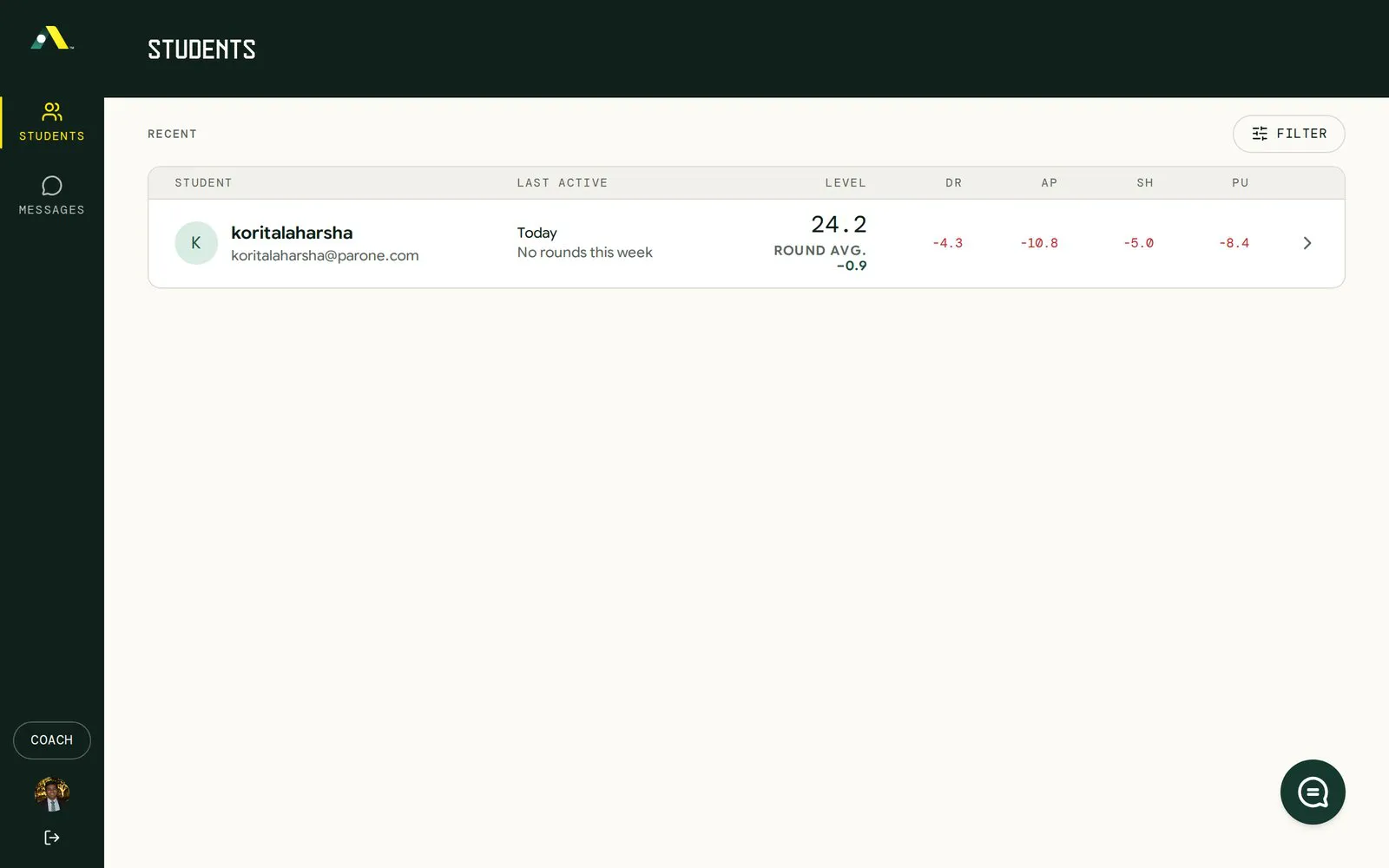
Use Filter to sort or narrow the list. The biggest red number on a row is usually the best place to start a lesson.
The left menu has Students and Messages. Calendar appears once you connect a scheduler.
04 Review a student
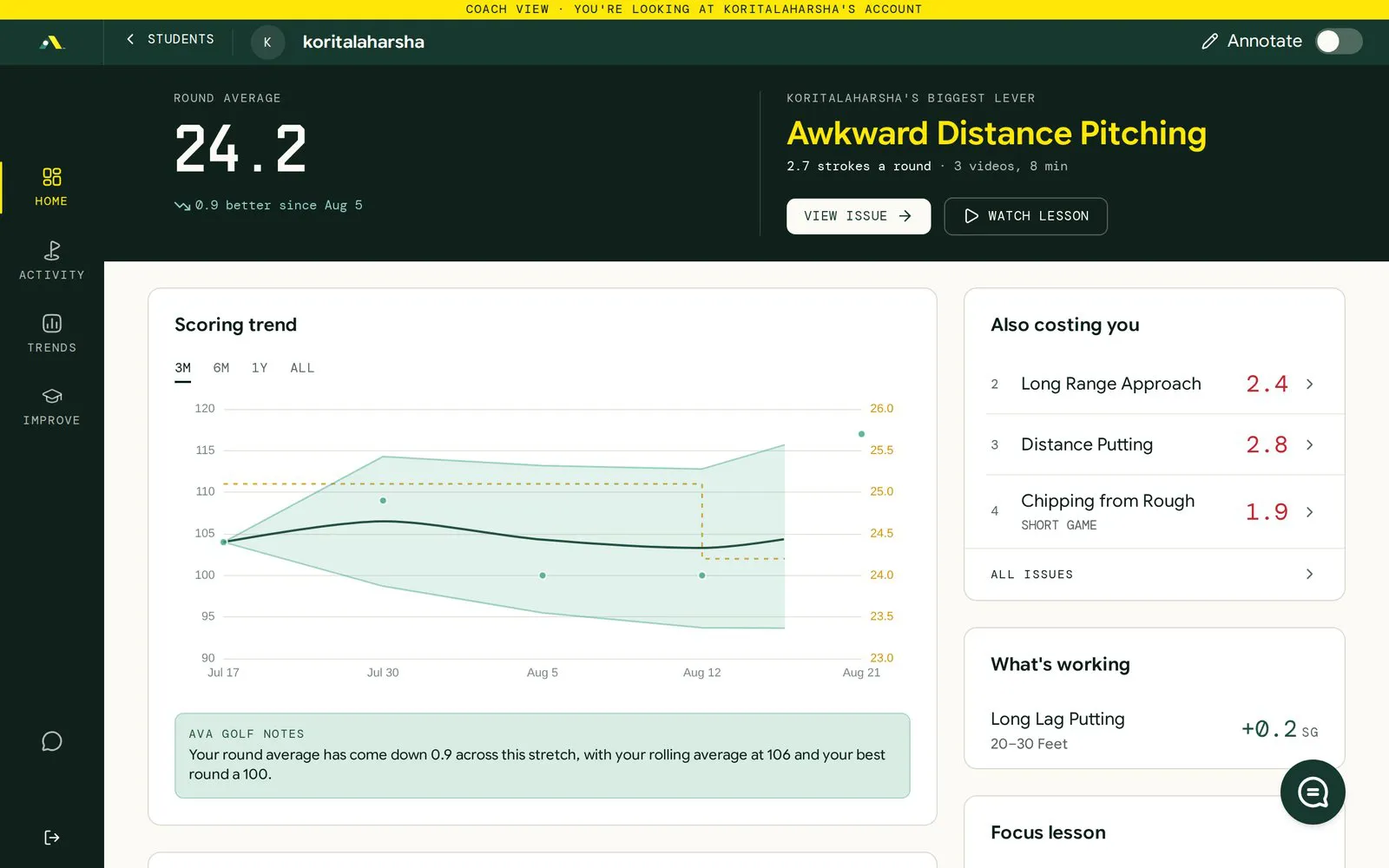
Section titled “04 Review a student”Click a student’s row to open their account in Coach view. A yellow bar at the top reads “Coach view · You’re looking at [student]’s account”. You see exactly what they see, but you can’t change their data.
| Area | What to look at |
|---|---|
| Home | Their Round Average or Handicap Index®, scoring trend and biggest lever: the area costing them the most strokes |
| Activity | Every round and range session. Open a round for the Overview (score, strokes gained, focus lesson) and the Hole map (shot by shot). |
| Trends | Strokes gained over time. The verdict names the part of the game costing them the most, for example “Approach is costing you 9.2 strokes a round”. |
| Improve | Their ranked Issues, each with matched video lessons |
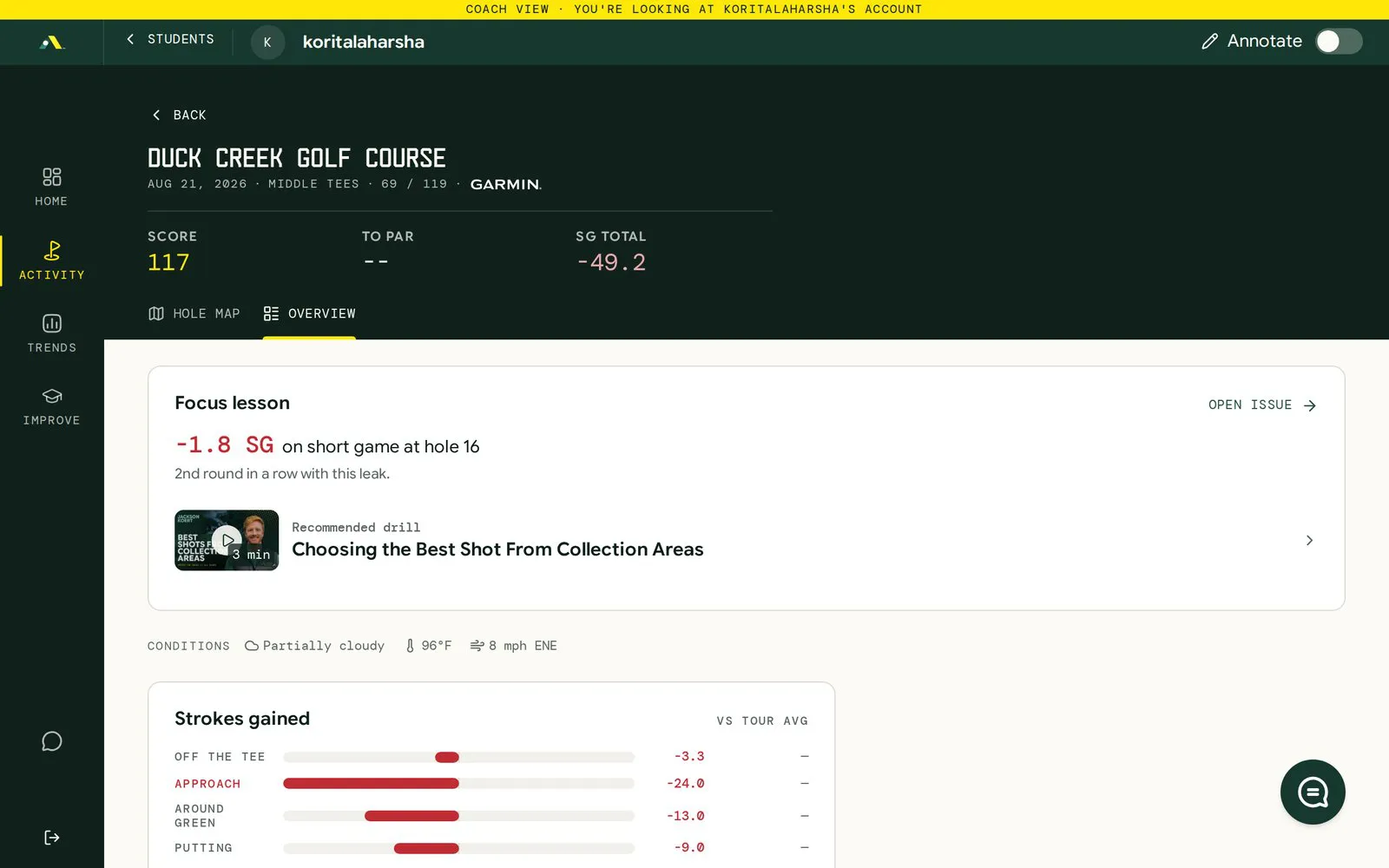
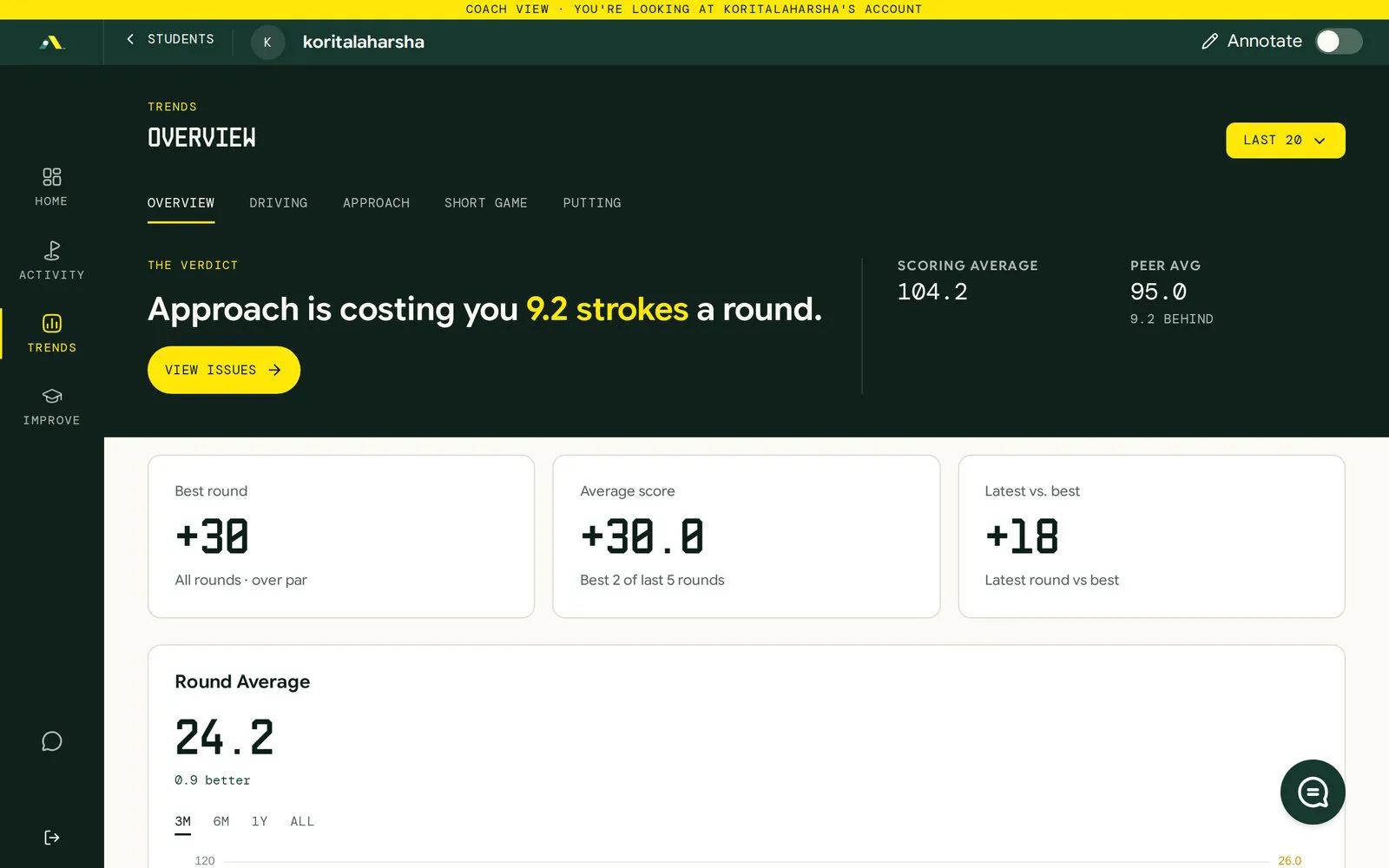
Reading strokes gained: positive numbers are shots gained against the benchmark, and negative (red) numbers are shots lost. The four parts are Off the tee, Approach, Around the green and Putting.
Click < Students at the top left to go back to your roster.
05 Leave feedback
Section titled “05 Leave feedback”Annotate a student’s data:
- In Coach view, open the screen you want to comment on, for example a round.
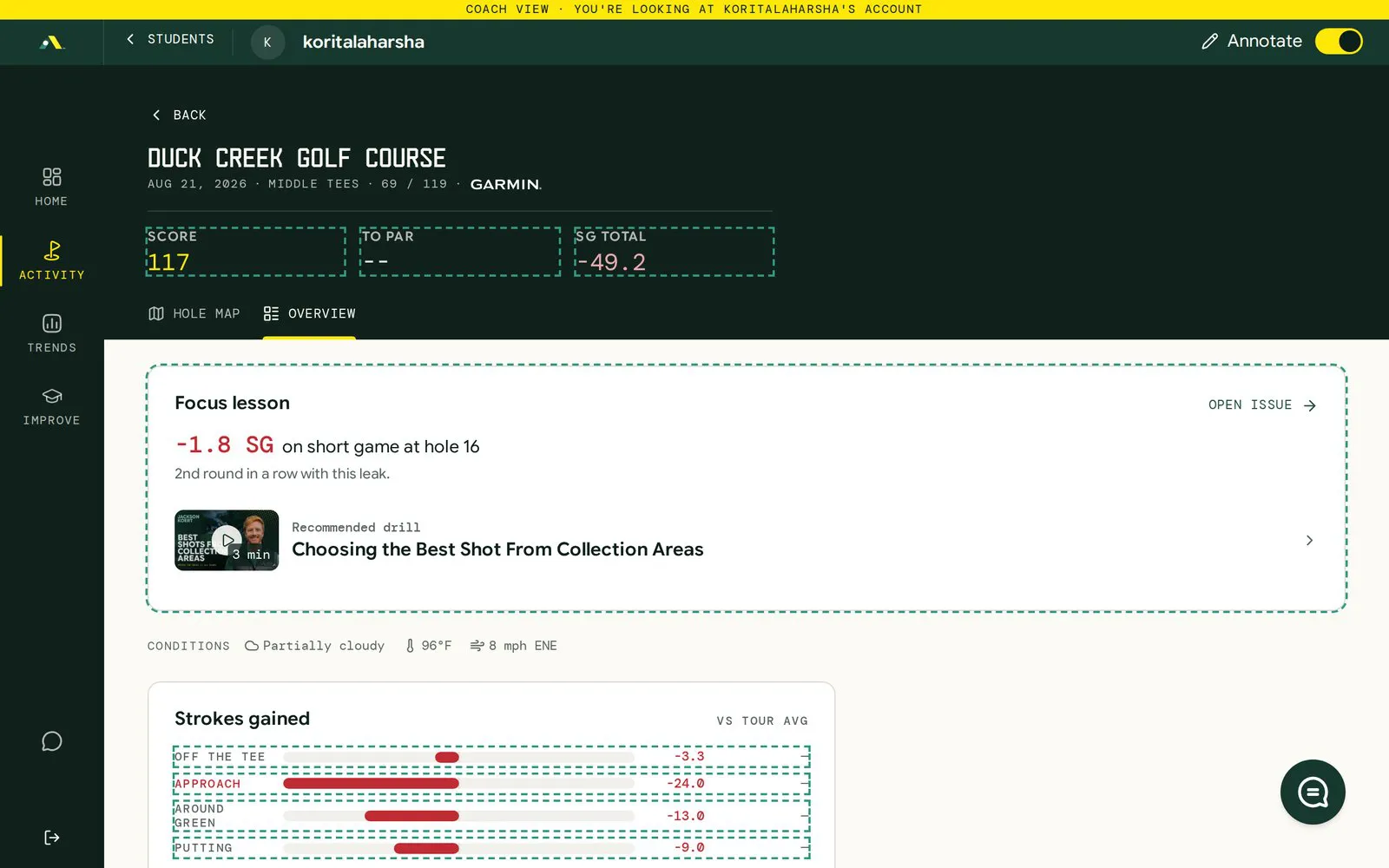
- Turn on the Annotate switch at the top right. Every part you can comment on gets a dashed green outline: score boxes, the focus lesson, each strokes-gained row and more.
- Click an outlined part to open New note.
- Click Start recording to leave a voice note, then Stop recording. Prefer typing? Click Type instead and answer “What should they work on here?”
- Save the note. Your student sees it on that same spot the next time they open the screen.
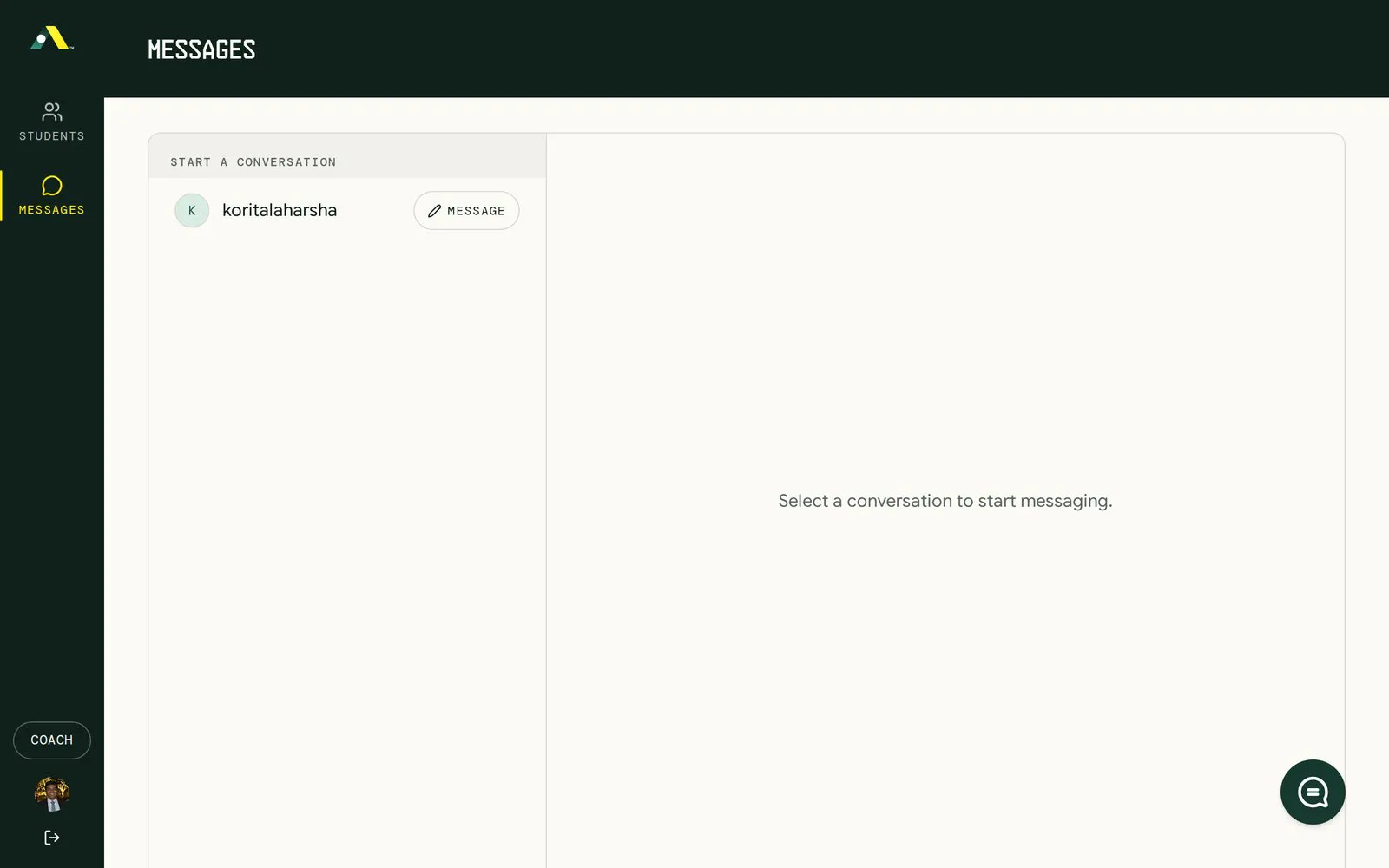
Message a student: open Messages in the left menu. Under Start a conversation, click Message next to a student.
Lessons and booking: open Settings › Calendar. Click Add a calendar to connect a scheduler, so students can book your live times. Or click Add a booking link to send students to your own booking page. AVA Golf doesn’t track lessons booked through an outside link.
Using AVA Golf on your phone
Section titled “Using AVA Golf on your phone”AVA Golf works in any phone browser at app.avagolf.com, and there’s an iPhone app. Sign in with the same account you use on the web. Your roster, Coach view and messages work the same way on a phone.
FAQ and getting help
Section titled “FAQ and getting help”Does it cost anything? No. Coach accounts are free, with no limit on students. Your students pay for their own player membership after a 14-day free trial.
I invited a student but can’t see them. They need to confirm your invite. New students also need to finish signup and connect at least one data source.
Can I see data a student hasn’t shared? No. You only see students who connected to you, and only while they stay connected.
Can I edit a student’s rounds? No. Coach view is read-only. You can add notes, not change data.
Can I track my own golf? Yes. Open Settings (your user icon at the bottom left) and click Switch to player mode under Account to see your own rounds and trends; the same row then reads Switch to coach mode to take you back to your students.
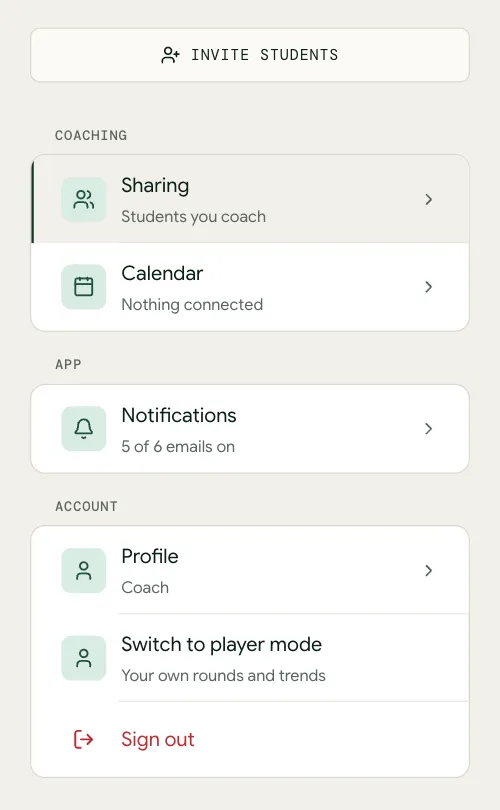
Need help? Open Settings › Support, use the chat button at the bottom right of any screen, or visit avagolf.com/support. More answers are in the FAQ.
Download this guide as a PDF
Section titled “Download this guide as a PDF”Prefer to read offline or print it? Open the AVA Golf Getting Started for Coaches PDF (10 pages).